
Download Facebook Notifications – Chrome extension for real‑time alerts, status updates & more
Overview
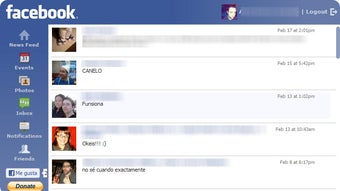
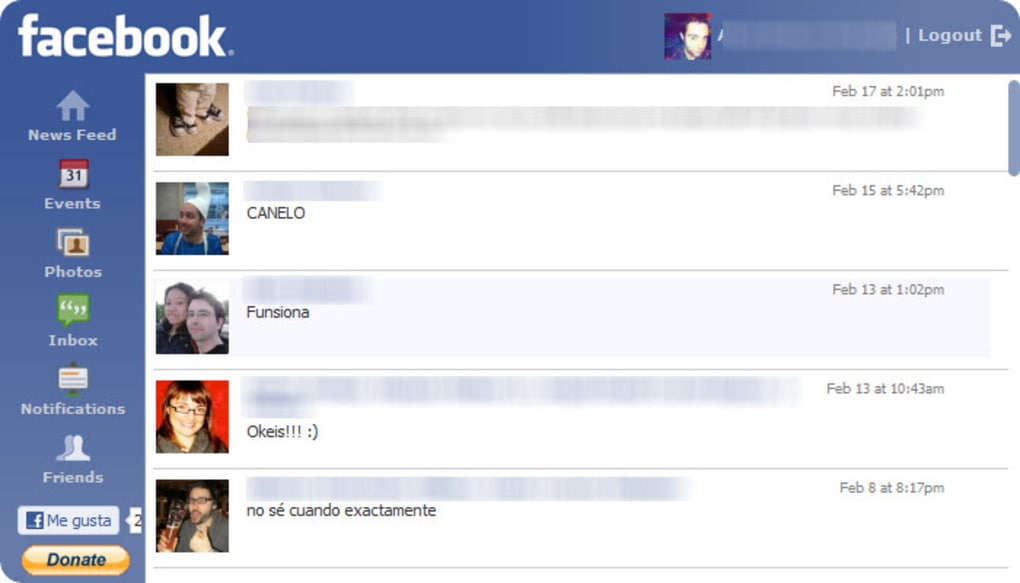
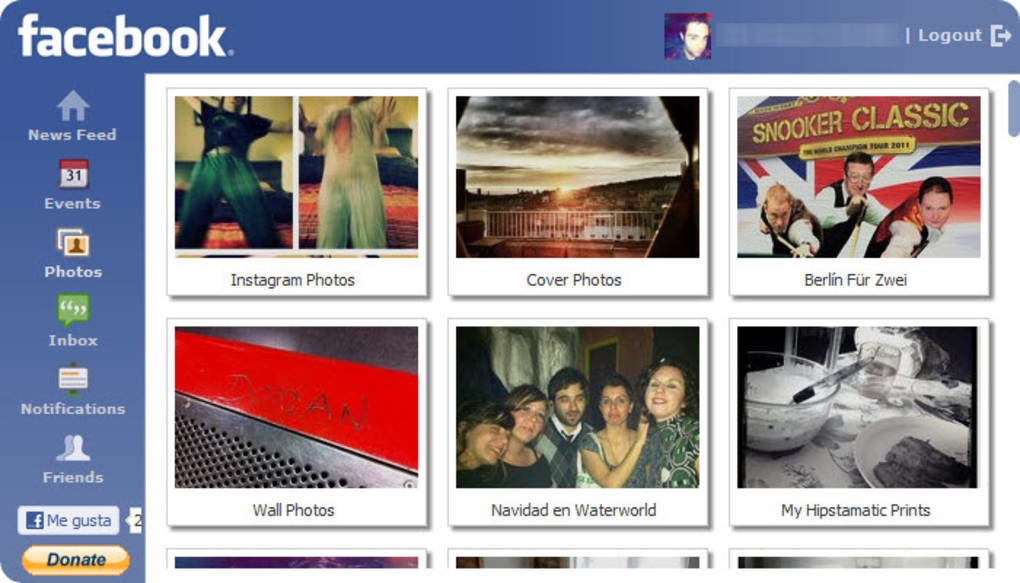
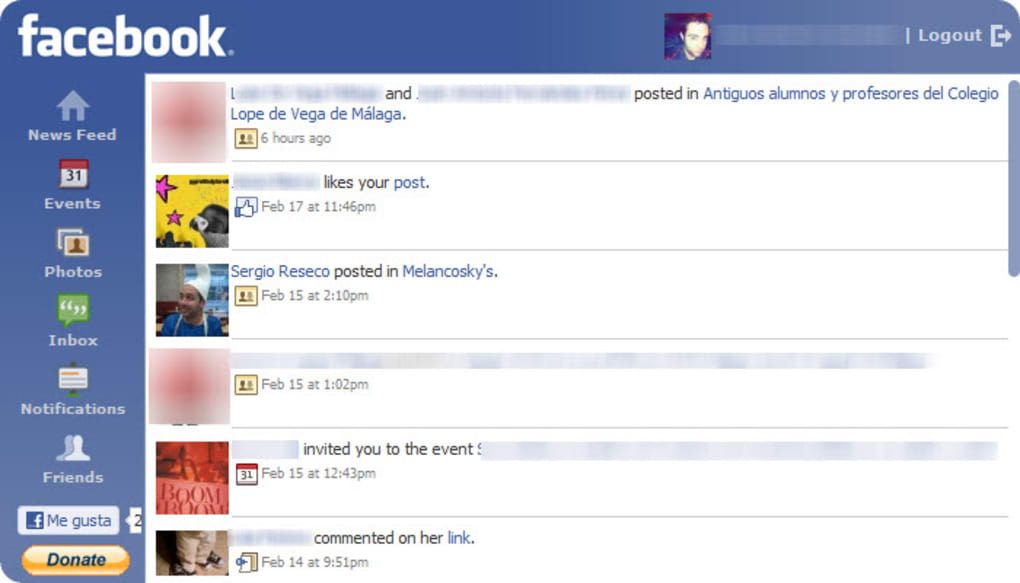
Facebook Notifications (also known as FBChrome) brings the core Facebook experience directly to your Chrome toolbar, allowing you to stay connected without opening a separate tab. The extension adds a discreet icon to Chrome’s main bar that displays a badge number whenever you receive a new message, comment, tag, or event invitation. Clicking the icon expands a compact dropdown that mirrors the most frequently used sections of the Facebook web interface – your wall, friends list, messages, notifications, and an event calendar.
All of this is presented in a minimalist, responsive design that works smoothly on both high‑resolution and low‑resolution displays. The real value of Facebook Notifications lies in its ability to let you read, comment, like, and even post status updates without ever leaving the page you’re currently working on. Whether you’re a power user who needs instant alerts for business pages, a student tracking group events, or simply someone who wants to avoid the distraction of switching tabs, this Chrome extension provides a secure, lightweight bridge between your browser and the social network.
Key Features
- Real‑time badge alerts – Instantly see the number of unread notifications right on the toolbar.
- Dropdown preview panel – Access your wall, friends, messages, and notifications without opening Facebook.
- Inline commenting & status updates – Reply to comments, like posts, and publish new statuses directly from the dropdown.
- Event calendar integration – View upcoming birthdays, events, and reminders in a compact calendar view.
- Minimalist UI – Clean, unobtrusive design that blends with Chrome’s native look and feel.
- Customizable notifications – Choose which types of alerts (messages, tags, reactions) you want to see.
- Secure authentication – Uses Facebook’s OAuth flow, ensuring your credentials are never stored locally.
- Automatic updates – Receives regular security patches and feature enhancements from the developer.
Installation & Usage Instructions
Step‑by‑step installation
Installing Facebook Notifications is straightforward and takes less than a minute. First, open Google Chrome and navigate to the Chrome Web Store. Search for “Facebook Notifications” or use the direct link provided by the developer’s website.
Click the Add to Chrome button, then confirm the permission request. The extension will appear as a small blue “f” icon on the right side of the toolbar. Because the extension uses Facebook’s official OAuth process, you will be prompted to log in to your Facebook account the first time you click the icon.
This login is handled securely by Facebook, and no password data is ever stored by the extension itself.
Getting the most out of the dropdown
Once installed, click the icon to open the dropdown. The top section shows a quick summary of your most recent notifications, each with a tiny preview thumbnail. Below that, you’ll find shortcuts to your Wall, Friends, Messages, and Events.
Hovering over a notification expands a small preview pane where you can read the full text, like, comment, or share without leaving the page. To post a status update, click the “Status” field at the bottom of the dropdown, type your message, and press Enter. The post is instantly published to your timeline.
For users who prefer a more focused experience, the settings menu (accessed via the gear icon in the dropdown) lets you toggle individual notification types, adjust the refresh interval, and change the theme color to match your Chrome color scheme.
Troubleshooting common issues
If you notice that notifications are delayed, try clearing the extension’s cache by opening Chrome’s extensions page (chrome://extensions/), clicking “Details” under Facebook Notifications, and selecting “Clear data”. Ensure that you have a stable internet connection, as the extension relies on real‑time polling of Facebook’s API. In rare cases where the icon disappears after a Chrome update, simply reinstall the extension – the process preserves your existing settings because they are stored in Chrome’s sync storage. For any persistent problems, the developer’s support forum offers a quick response time, and the FAQ section below addresses the most frequent questions.
Compatibility, Pros & Cons
Facebook Notifications is built exclusively for the Google Chrome browser on desktop platforms. It works on Windows 10/11, macOS Catalina and newer, as well as Linux distributions that support Chrome. Mobile Chrome browsers do not support extensions, so the tool is intended for desktop use only. The extension is also compatible with Chromium‑based browsers such as Microsoft Edge and Brave, provided the user installs the extension from the Chrome Web Store.
Pros
- Instant, unobtrusive alerts keep you informed without interrupting workflow.
- Full commenting and status‑update capabilities from the toolbar.
- Lightweight footprint – uses less than 5 MB of RAM on average.
- Secure OAuth login protects your credentials.
- Highly customizable notification filters.
- Regular automatic updates improve security and add features.
Cons
- Only available on desktop Chrome; no native support for mobile browsers.
- Relies on Facebook’s API, so occasional rate‑limit throttling may occur during high‑traffic periods.
- Limited to the core Facebook features – advanced analytics or page management tools are not included.
- Some users report a slight delay (1–2 seconds) in badge updates after a new notification arrives.
Frequently Asked Questions
Is Facebook Notifications free to use?
Yes, the extension is completely free. It does not contain hidden fees, subscription charges, or in‑app purchases. All features described in the feature list are available to every user after installation.
Does the extension store my Facebook password?
No. Facebook Notifications uses Facebook’s official OAuth authentication flow, which means your credentials are entered directly on Facebook’s secure login page. The extension never sees or stores your password.
Can I use the extension on Microsoft Edge?
Yes. Edge is built on the Chromium engine, so you can install the extension from the Chrome Web Store by enabling “Allow extensions from other stores” in Edge’s extension settings.
How often does the extension check for new notifications?
By default, the extension polls Facebook’s API every 30 seconds. Users can adjust the refresh interval in the settings menu, with options ranging from 15 seconds to 5 minutes.
Will the extension affect my browser’s performance?
The extension is designed to be lightweight. In typical use it consumes less than 5 MB of RAM and adds virtually no CPU load. Users with many other extensions may notice a slight increase in memory usage, but overall performance impact is minimal.
Conclusion & Call to Action
Facebook Notifications fills a clear niche for Chrome users who want to stay on top of their social feed without the constant distraction of a full‑screen tab. Its real‑time badge alerts, inline commenting, and compact event calendar make it a valuable productivity booster for anyone who spends a large part of their day in the browser. While it’s limited to desktop Chrome and relies on Facebook’s API, the benefits of instant access and a clean UI far outweigh these minor drawbacks. If you’re looking for a secure, free, and easy‑to‑install way to keep Facebook at your fingertips, this extension is worth a try.
Free – Click the button below to add Facebook Notifications to Chrome and start receiving real‑time alerts today.
Pros: Real‑time alerts, inline posting, lightweight design.
Cons: Desktop‑only, occasional API rate‑limit delays.







